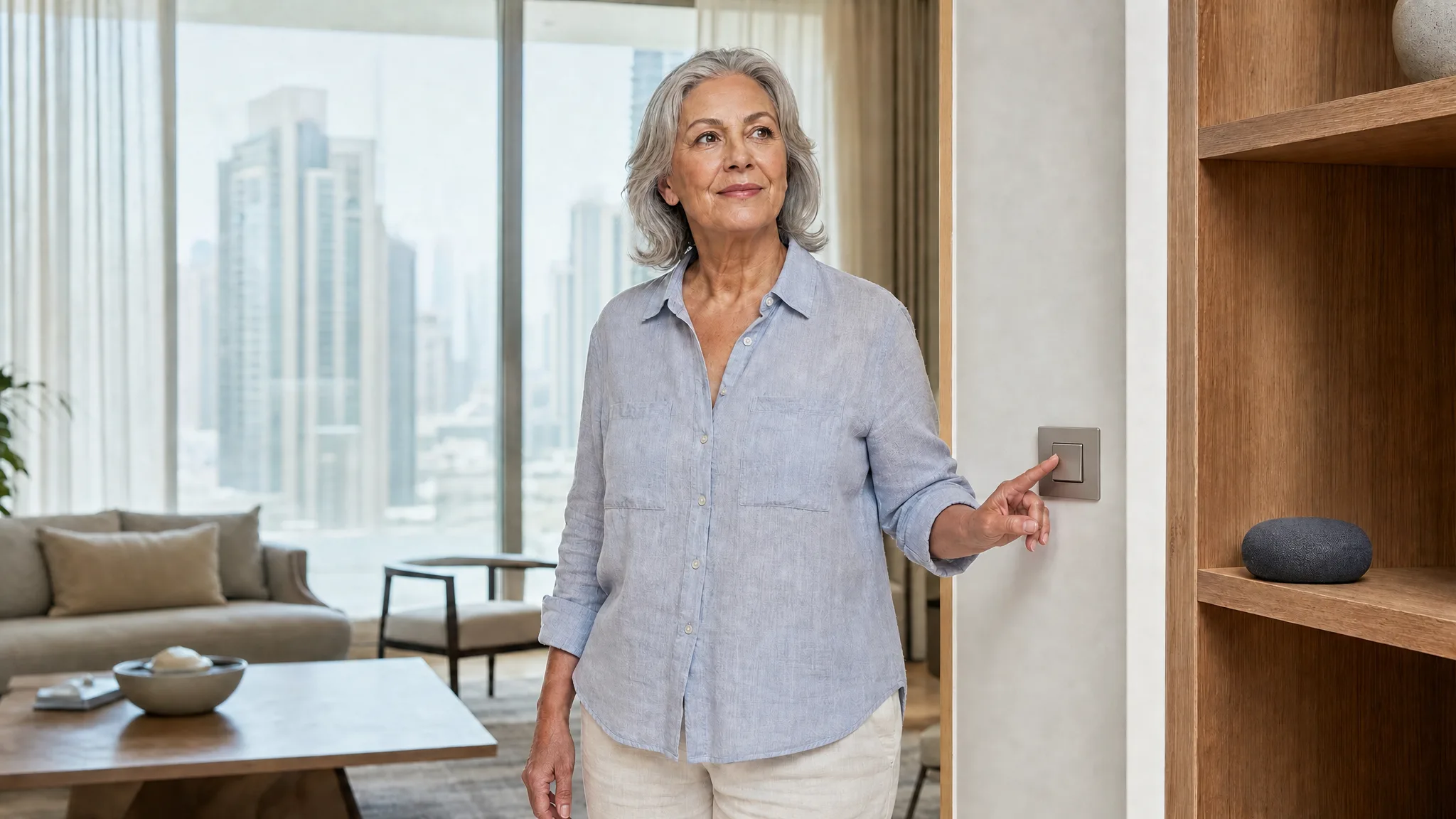
If you have low vision, the hardest part of a smart home is often the app. The lights, the AC and the front door all end up behind small icons on a phone, and the wall switch you used to find by feel may stop doing what it did.
Most of that can be set up so you rarely need to read the screen. How much depends on choices made before anything goes on the wall, so start with the app.
Test the App With Your Screen Reader Before You Buy
Start with the phone you already use. Android has TalkBack and iPhone has VoiceOver, and both read out what you touch, select and activate. Google says its Google Home app works with both (Google Home Help on screen readers).
Every device maker writes its own app, and they aren't all equally easy to use this way. So install the app with your screen reader on and swipe through the first few screens before you buy the device. If what's read out doesn't tell you which control is which, that app will be hard work every day.
If you already own devices whose app gives you trouble, look for the Matter logo on the next thing you buy. Guide Dogs points out that with Matter devices you can switch to a different control app if you hit an accessibility problem (Guide Dogs on Matter). Adding a Matter device to a second app is covered in our post on lost Matter setup codes.
Use Your Voice for the Things You Do Every Day
Once it's set up, you can turn the heating on just by asking Alexa, as Blind Veterans UK puts it (Blind Veterans UK). In a Dubai flat it's the AC. With a smart AC controller linked to your voice assistant, you can say "set the bedroom to 23" instead of reading the remote's small display.
Give every light and AC unit a short name that's easy to say and hard to confuse with another one, because you'll say it many times a day. Each assistant has its own naming rules, which we went through in naming devices for voice.
It also helps to hear that the speaker caught what you said. On a Google smart display you can turn on a sound when it hears "Hey Google" and another when it finishes listening (Google Nest Help on displays). Echo devices with a screen have Request Sound, a tone that plays when Alexa hears the wake word (Amazon).
Amazon's and Google's speakers with a screen have their own screen readers:
- Echo devices with a screen: VoiceView, a magnifier and colour inversion (Amazon).
- Google smart displays: a screen reader, a magnifier you open with a triple tap, and colour inversion (Google Nest Help on displays).
HomePod and HomePod mini have no screen, but VoiceOver reads out the controls on top as you touch them, and it carries over from the iPhone you set it up with if that phone uses VoiceOver (Apple).
Keep a Switch You Can Find by Touch
When someone turns a smart bulb off at the wall, the app and the voice assistant can't reach it until the switch goes back on. So you ask for the light, nothing happens, and nothing tells you why. The same thing breaks lighting schedules.
A relay module fitted behind the existing switch avoids that. Shelly's 2PM Gen3, for example, is made to be retrofitted into standard wall boxes behind light switches (Shelly), so the switch you know stays where it is and still works, and voice and the app work as well. Fitting one is a licensed electrician's job, and in a rented flat the landlord needs to agree first.
For controls you only use now and then, Blind Veterans UK suggests a small blob of Blu Tack to mark a setting on a thermostat or a button on a remote (Blind Veterans UK).
Even Light From One Room to the Next
Guide Dogs suggests keeping light levels even across the home, so your eyes don't have to adjust every time you walk from a bright room into a dim one, and grouping bulbs by room makes that easier to manage (Guide Dogs smart lighting guide). Blind Veterans UK adds three more: cut glare, use task lamps and dimmers, and keep the lights on during the day if that helps you see.
The same Guide Dogs page quotes Joel, who put a Hue bulb in the hall of a new home and set it to turn green on the way home after sunset. That made the house easy to pick out on an unfamiliar street.
How bright, how warm and how much contrast suits your eyes is a question for your eye specialist or a low-vision clinic. If they give you brightness or colour settings, save them as a scene you can call up by voice.
Lock by Voice, Unlock With a Code
Voice assistants treat unlocking a door differently from switching on a light. To pass Google's certification, a lock maker that connects its own cloud service to Google Home has to make the Assistant ask for a PIN before a voice command unlocks the door (Google Home Developers). On the Alexa side, TP-Link's Tapo lock is one example: unlocking is switched off by default, and you create an access code before you can unlock by voice (TP-Link).
That code is spoken out loud, so anyone nearby hears it. Use voice to lock. Say the unlock code only when you're sure nobody else is in earshot. For getting in, a key or a keypad with raised buttons you can feel is the simpler choice, and if the lock takes a key, keep it working so a flat battery doesn't leave you outside.
For Matter locks, the Google Home app can also send a notification each time the door locks or unlocks, and you choose whose activity triggers it (Google Home Help on locks). On Android, TalkBack tells you when a notification arrives. Renting? Our guide to smart locks for Dubai apartments covers what you can fit.
If You're Setting This Up for Someone Else
Do the setup on their phone with their screen reader switched on, and let them choose the names they'll be saying every day. Before you leave, have them work each light by voice and by its switch, set the AC by voice, and open and lock the front door with the key or keypad, once on their own.
If you'd like us to do it, tell us which phone and screen reader they use, and we'll check the apps against it first.
Ready to Get Started?
Get a free consultation and we'll recommend what makes sense for your situation.
Get Free Consultation