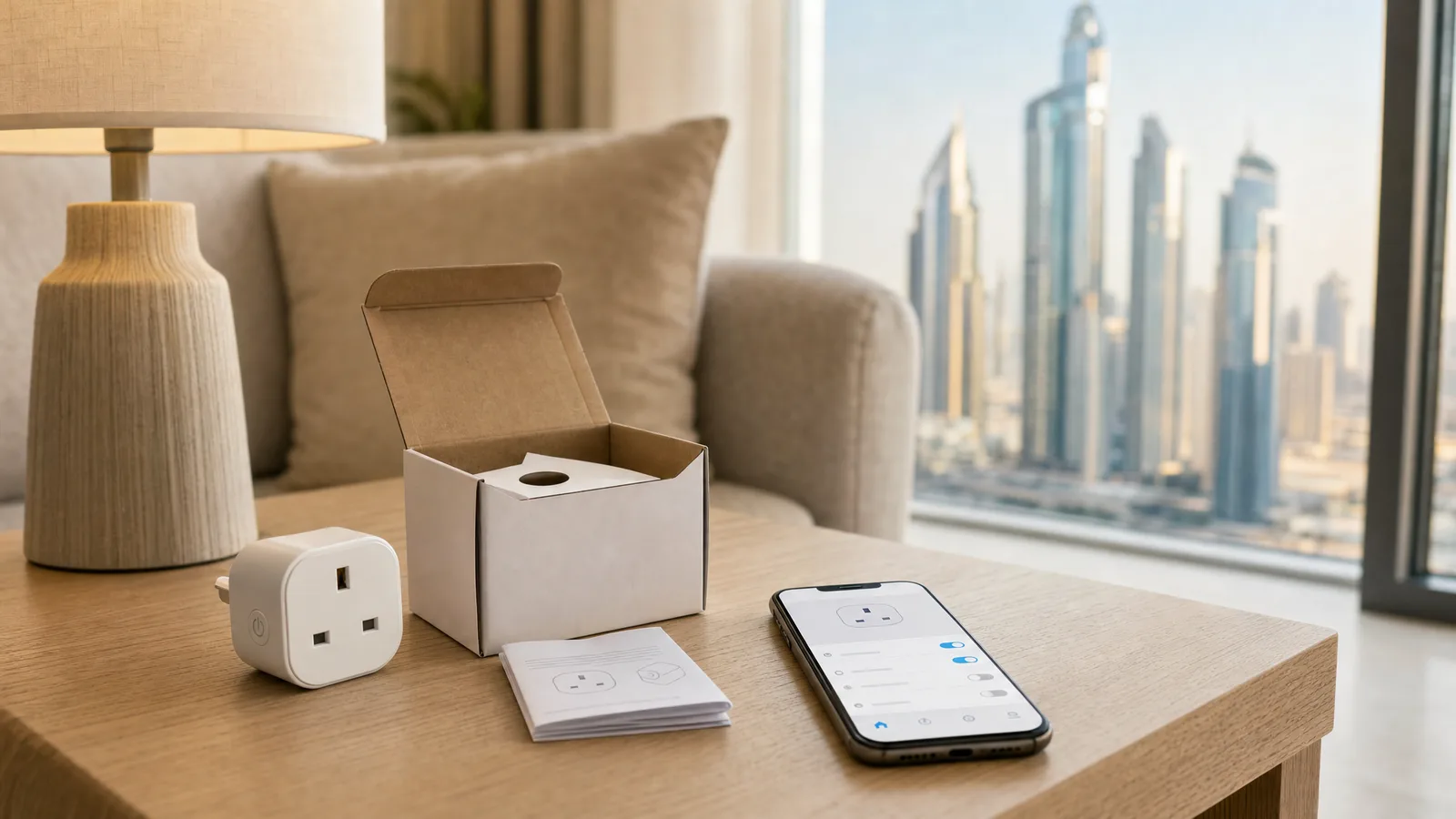
If the QR code or the 11-digit number that came with a Matter device is gone, you may not need it. Amazon's help page says the printed code is "only for use when initially setting up your device or after a factory reset" (Amazon, 2026). If the device was added to an app over Matter and still works there, that app can usually make you a fresh code for the next one.
Don't Factory Reset It First
A reset wipes the device's link to every app it's in. For many devices the only way back after that is the printed code, and Home Assistant's documentation is clear that without it, "commissioning won't be possible" (Home Assistant, 2026). Commissioning is the Matter word for adding a device to an app.
So if a plug won't join a second app and the sticker went out with the box, hold off on the button and work through the sections below first.
Already reset it? Then no app can make a code for you. Go straight to where the printed code usually hides, and if that fails, the maker's app may still get you back in (covered in When the Code Really Is Gone).
If It Still Works in One App, Make a New Code There
Matter lets one device sit in several apps at once. The app that already controls it hands out a short-lived code, and you type that code into the app you're adding it to. The menu names below come from each company's help pages and can move between app versions.
Get the second app ready first, because some of these codes expire in minutes. Open it, find the option to add a new device, and have it waiting at the step where you enter a pairing code (Google, 2026). Home Assistant first asks whether the device is new, and you pick "Yes. It's already in use" and then the app it's in (Home Assistant, 2026).
Google Home. Touch and hold the device tile, open its settings, then Linked Matter apps & services, then Link apps & services. Pick the other app from the list, or choose Use pairing code to get a number (Google, 2026). TP-Link's own guide to these menus says that number lasts 3 minutes and the Google Home page has to stay open while you enter it.
Amazon Alexa. Open Devices, pick the device, then Other Assistants and Apps, then Add another. Alexa gives you an 11-digit code that's valid for 15 minutes (Amazon, 2026).
Apple Home. In the accessory's settings, tap Turn On Pairing Mode and copy the code. TP-Link's guide gives it 5 minutes, and if you dismiss it you wait 5 minutes before you can make another, unless you restart the device (TP-Link, 2026). Going the other way, into Apple Home, the Home app lists accessories first paired from an iPhone or iPad under Add Accessory, More options, and Apple's guide says you then generate the pairing code in the app that already has it (Apple, 2026).
SmartThings. Open the device, tap the settings icon, then Share with other services. On Android tap QR code, and on an iPhone tap Share device. You get a QR code and a number that last 15 minutes, and the page has to stay open while you use them (TP-Link's guide again).
Home Assistant. Go to Settings, Connectivity, Matter, Devices, pick the device and choose Share device. You don't have to press anything on the device itself (Home Assistant, 2026).
You'll know it worked when the device appears in the second app and still works in the first. Sharing adds it to the second app without taking it out of the first, and Google says you can then control it from both (Google, 2026).
If the code is accepted and the device still never shows up, check the hub. Google says each app needs its own Matter hub, such as a smart speaker or display, to control the device (Google, 2026). Apple documents an exception: an iPhone on iOS 18 or later can add and control Matter accessories in the Home app without one, though Thread devices can still need one (Apple, 2026).
These menus only work when the device was added to that app over Matter. A plug that shows up in Alexa or Google through the maker's own account link won't have them, and that's the next section.
If It Only Lives in the Maker's App
Some devices were set up in the manufacturer's own app and never added to anything over Matter. Look in that app's device settings for anything called Matter. TP-Link's Tapo and Kasa apps keep it under Device Settings, Device Info, Matter Setup Code (TP-Link, 2026), and TP-Link says a code made in the Tapo app is valid for 15 minutes.
Other brands name it differently. Search the maker's help pages for "Matter" and "share" before you decide the option isn't there.
Where the Printed Code Usually Hides
If no app has the device, you need the original code, and it's often still around. Amazon says it's on the device or its packaging (Amazon, 2026). It's usually 11 digits, though Apple's guide mentions a 21-digit version too (Apple, 2026).
Before you handle anything, unplug a plug at the socket. For a bulb, switch it off at the wall and give it a few minutes to cool before you unscrew it, and use a proper step ladder for anything on the ceiling rather than a chair. If it's a switch wired into the wall, skip to the next part and don't take anything apart.
Then look in this order:
- On the device. TP-Link prints it on the side of a plug, on a bulb's body between the glass and the base, and on the side of a switch near the button (TP-Link, 2026). Other brands put it elsewhere, so check every face.
- Inside the box. TP-Link puts a spare sticker in the box in case the one on the device gets damaged.
- In the manual or the quick-start card. Home Assistant notes some devices carry the code only in the paperwork that came with them.
- In your photos. Scroll back to the week the device was set up. If someone set it up for you, ask whether they took a picture.
Check, too, that it's a Matter model at all. A TP-Link forum post about a lost Matter code ended with the owner finding they'd bought some non-Matter plugs alongside the Matter ones (TP-Link Community, 2025). If the box has no Matter logo, there may never have been a code.
If the code is on a wall switch
On a Matter switch that's wired in, the code may be on the part of the casing that's now inside the wall box. Don't take the plate off to read it. The switch is on mains power, and opening it is an electrician's job. If the switch still works in any app, including the maker's, the steps above will get you a new code without touching the wall. If it doesn't, ask an electrician or whoever fitted it.
When the Device Is in Someone Else's App
This is common when you move into a rented flat and the lights or plugs came with it. The device works from its own button, but it's tied to the previous tenant's Google Home or the landlord's phone, and the share menus are inside an account you can't open.
Ask the landlord or agent whether they, or whoever installed it, can share the device with you from their app, or remove it so you can start fresh. Removing it there may not be enough on its own, because a device freed from its old app may still need the printed code to join yours. Our guide to taking over a smart home someone else set up covers the bigger version of this problem, and what renters take with them when they move covers the other side of the same lease.
When the Code Really Is Gone
If the device has its own maker's app, try setting it up there first. TP-Link's instructions for getting a code out of Tapo or Kasa start with setting the device up in that app (TP-Link, 2026), and a regular on TP-Link's forum told the owner with the lost sticker that the plug installs in Tapo without the Matter code (TP-Link Community, 2025). Once it's in, the app can make a code for Google, Alexa or Apple. Check whether your brand's app does the same.
If that isn't an option, contact the maker's support with the model and serial number and ask whether they can reissue the code. We haven't seen a published route for reissuing one, so treat it as a request. If you have an iPhone and the device was ever paired to it, Settings, General, Matter Accessories shows each accessory's serial number, so you don't have to take it down to read it (Apple, 2026).
If support can't help, the device may only work from its own button or its maker's app from now on.
Keep a Copy Next Time
When the code is only in the paperwork, Home Assistant suggests taking a photo of it, ideally with the device in the shot, and keeping it somewhere safe (Home Assistant, 2026). It's worth doing for every device, before a switch goes into the wall or a bulb goes up in a pendant you can't reach. A shared album called "smart home codes" is enough.
Our Matter guide explains how the standard works if you're adding more devices, and our Home Assistant page covers the platform we build on. If you're stuck on a device that's in the wall or tied to someone else's account, tell us what you've got and we'll say whether it needs a visit at all.
Ready to Get Started?
Get a free consultation and we'll recommend what makes sense for your situation.
Get Free Consultation