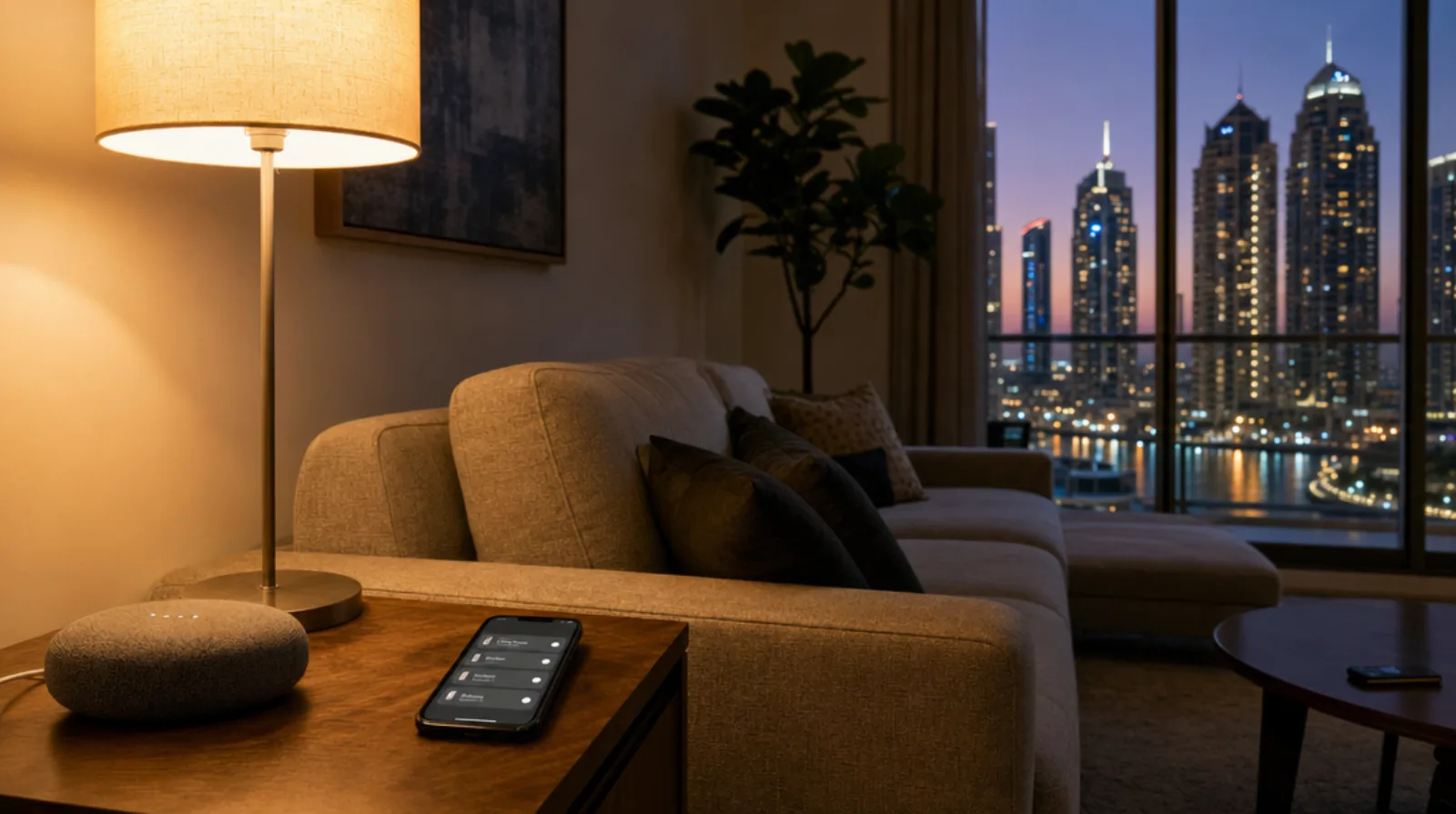
If you ask for the bedroom lamp and the hallway light comes on, or the assistant says it can't find a device that's sitting right there in the app, look at the names before you look at the Wi-Fi. A voice assistant matches what you say against the names, rooms and device types it was given at setup, and those are often whatever the app filled in on the day.
Look at What the Assistant Actually Sees
Open the app the speaker belongs to (Alexa, Google Home or Apple Home) and read through the device list as if you'd never seen it. You're looking for four things:
- Names you'd never say out loud, like a model number or "Light 1".
- Two names that sound alike when spoken.
- Devices sitting in the wrong room, or in no room at all.
- Plugs and switches that run a lamp but are still listed as a plug or switch.
Home Assistant's own documentation gives the clearest example of the first problem: you'll have a hard time asking for "Tuya Light Controller 0E54B1 Light 1" (Home Assistant).
Rename It Like You'd Say It
Pick the name a person in your house would use without thinking: "bedside lamp", "ceiling light", "balcony light". Google's tips for renaming a device that Assistant can't control are short, and worth following in Alexa and Apple Home too (Google). Home Assistant's own Assist does it differently, further down.
- Leave out numbers, special characters and room names.
- If a light runs off a smart plug or switch, add "plug" or "switch" to the name.
- Avoid names that are close to each other. Google's own example of what not to do is "Table light left" and "Table light right".
If you do have two lamps in one room, name them by what they're for or where they sit, so the first word differs: "reading lamp" and "window lamp".
Where to rename:
- Google Home: Devices, tap the device, Name, enter a nickname, OK.
- Apple Home: touch and hold the accessory tile, tap Accessory Settings and edit the name. Apple says the name you give it is the one you use with Siri (Apple).
- Alexa: Devices, select the device, then its settings. If it's a plug or switch running a lamp, also open Device Settings, Type, and change it to Light (Amazon).
Menu names move between app versions, so if a step doesn't match your screen, look for the device's settings and the name field near the top.
Let the Room Do the Work
Google's tip to leave room names out makes sense once every device has a room. Assign each light to its room and you can say "Turn on lights in the bedroom" without naming a single bulb (Google). Apple's rooms can also be grouped into zones, so "Turn off the lights downstairs" covers a whole floor of a villa (Apple).
Where to set the room:
- Google Home: first look in Devices for anything marked "Unassigned". Then tap the device, Room, pick a room or add a custom one, and Save.
- Apple Home: touch and hold the accessory tile, tap Accessory Settings, then Room, and choose one (Apple).
- Alexa: rooms are groups. Open Devices, select Plus, then Add Group, and pick the devices (Amazon).
Put an Echo in the group too. Create a group called "Living Room" with an Echo in it, and saying "Lights on" to that Echo turns on the lights in that group (Amazon). An Echo can only be in one group at a time. If the living and dining areas share a speaker, Amazon's workaround is the Speakers setting inside the second group, which it says gets the same effect (Amazon).
Give Each Person the Word They Use
In a lot of Dubai homes the people talking to the speaker don't share one set of words. One person says "the AC", another says "the air conditioner", and a grandparent or whoever helps in the house might use a different word or a different language again.
In Alexa, Google Home and Apple Home each device has one name, so pick the word the person who uses it most will say. Language is a separate question: the speaker has to support the language the person speaks, and Google notes that the languages you can use depend on the device (Google).
If Home Assistant runs your home, it goes further. You can add aliases, extra names for the same device, area or floor, for when you call the same device by more than one name or use a voice assistant in more than one language at the same time (Home Assistant). Its best-practices page gives the example of one person saying "TV" while someone else says "Television" (Home Assistant). The aliases can also be used by Google Assistant if you've connected the two. Each language still has to be supported by the assistant you speak to, so check yours before you rely on it.
Home Assistant also suggests the opposite of Google's naming rule for its own Assist: put the area in the full name, "Living room lamp", then add a short alias, "Lamp". Because Assist can tell the area from the sentence, "turn on the lamp in the living room" works, and so does "turn on the lamp" said to a speaker that lives in the living room (Home Assistant). If you talk to Alexa, Google or Siri, Google's tips are the safer default. If you talk to Home Assistant's Assist, use its pattern.
Then test it with the person who'll use it. Stand where they'd stand, have them say the command in their own words, and watch which light changes. Our post on living with a smart home when half the house never opens the app has more on testing voice with the people who never set it up.
Keep Locks Off Voice
If Home Assistant runs your home, you choose which devices the assistant can see at all. Home Assistant describes exposure as opt-in, advises exposing only what you'll use by voice (Home Assistant), and gives the reason as keeping sensitive devices, such as locks and garage doors, from being controlled by voice by mistake (Home Assistant). Open the Expose tab under Settings, then Voice assistants, and check what's actually on the list.
That's a good rule to borrow on any platform. Lights, fans, curtains and the TV are fine for voice. The front door is a separate decision. Our post on giving live-in help the right access notes that Alexa won't unlock a lock by voice unless you switch that on and set a spoken PIN, and covers who in the house should be able to do what.
When Renaming Doesn't Fix It
If the device came with its own app, check it works there first. If it does, the names are right and it still fails by voice, look at the link between that app and the assistant. Our post on devices that work in their own app but not in Alexa or Google goes through checking the accounts and relinking on both sides. For Alexa, Amazon's steps include this check: if the device uses a skill and the maker's app can control it but Alexa can't, remove and add the skill again in the Alexa app (Amazon).
If a light switches on when nobody asked for anything, that's a different fault, and our post on smart lights turning on by themselves walks through finding what sent the command.
Names, rooms and which devices answer to voice are part of the setup in a Home Assistant build. To have us look at yours, send us the command that fails and the light it switched on instead.
Ready to Get Started?
Get a free consultation and we'll recommend what makes sense for your situation.
Get Free Consultation