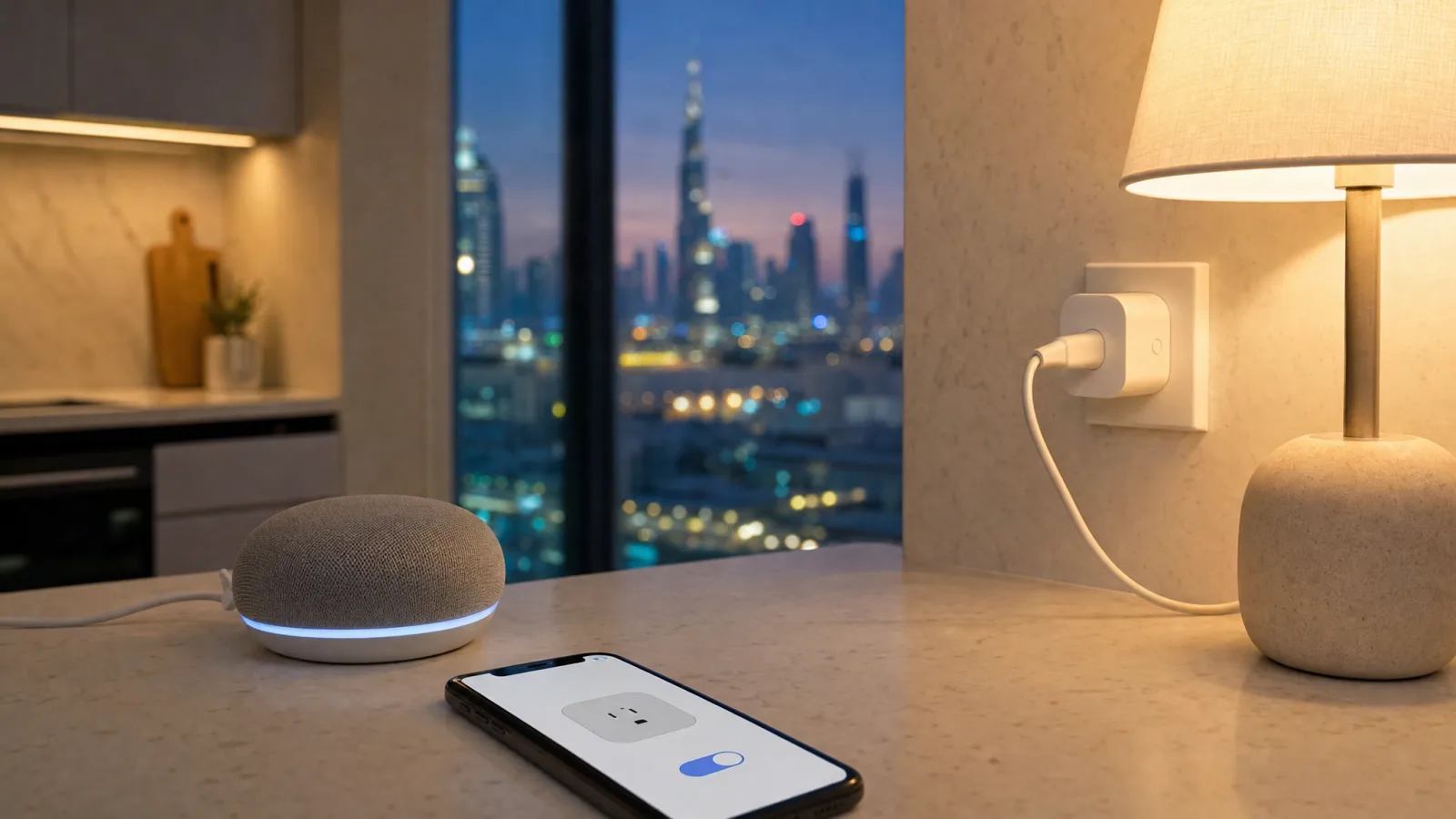
Alexa and Google Home reach many Wi-Fi plugs, bulbs and thermostats through an account you made in the maker's app, linked to your Amazon or Google account. So when a device still switches from that app but Alexa calls it unresponsive, or Google Home lists it as offline, check the link between those two accounts before you reset anything.
How a Voice Command Reaches a Wi-Fi Device
Google describes the route for a light that works with Google Home: a request from a Nest Mini goes to Google's servers, gets relayed to the light maker's servers, then comes back over the internet to your home to switch the light (Google). Alexa reaches these devices through a skill, an add-on from the maker that you turn on in the Alexa app and sign in to.
If the internet itself is down, that's a different problem, and our post on what still works when the internet drops covers it.
Unresponsive in Alexa? Test the Maker's App First
Open the app that came with the device and switch it from there. If it doesn't respond in its own app either, relinking probably isn't the fix. Start with power and the router, and our guide to smart devices dropping off Wi-Fi.
Then ask the speaker something unrelated, like the time, to make sure it's online.
If both work and the speaker still can't control the device, go to the link. Removing the skill and adding it again is Amazon's fix for a device the maker's app can control and Alexa can't (Amazon). If the speaker answers but switches the wrong light, the link is probably fine and the names need work, which our post on voice assistants controlling the wrong device covers.
Check Which Accounts Are Linked
A relink only helps if you sign in to the right accounts. In a family flat or villa, the parents, an older child and sometimes the nanny may each have added a device on their own phone, under their own login in the maker's app. If someone else relinks the skill with their login, Alexa will see whatever is on that account, which may be nothing.
Ring spells out both sides for its skill: sign in to the Ring account you used to set the devices up, and to the Amazon account linked to your Alexa device (Ring). On the Google side, tap your profile picture in the Google Home app and check that the account shown is the one linked to your speaker or display (Google).
Before you relink anything, open the maker's app, note the email it's signed in with, and confirm the device is listed there.
Relink the Skill in Alexa
Lightwave warns that disabling its skill takes its devices out of the Alexa app and stops any routines or voice commands that use them (Lightwave), and TP-Link says voice commands and automations stop until the skill is linked again (TP-Link). So start with a note of what you'd lose.
- In the Alexa app, open Routines and screenshot or write down every routine that uses this maker's devices.
- Open Skills & Games, then Your Skills, find the maker's skill and tap Disable Skill. This unlinks the maker's account from Alexa (TP-Link).
- Enable the skill again and sign back in to the maker's account, the one with the device on it (Lightwave).
- Check the device list in the Alexa app. If the devices aren't there, the account you signed in with probably isn't the one that holds them. Go back to the maker's app, confirm the email, and relink with that one.
- Open each routine from your note and check it still points at the device.
Reconnect or Relink in Google Home
If you changed the device in the maker's app and it's now missing from Google Home, start with a sync. Tap your profile picture, then Home settings, then Works with Google, pick the maker and tap Reconnect account. The sync is done when the spinning circle disappears (Google). Saying "Hey Google, sync my devices" does the same from a speaker.
If it shows as offline, Google's order is to unplug the device for a minute or two, restart the router, then unlink and link again. To unlink, go to the same Works with Google screen, tap the maker under Linked, and choose Unlink account. To link again, search for the maker's name on that screen and follow the sign-in steps. When an error screen offers a Relink button, tapping it reconnects the account for you (Google).
When the Link Breaks on Its Own
A link can also drop with no change at your end. A maker can rebuild its connection to an assistant, and existing users then have to link again. tado's help page, dated August 2025, says its Google integration "has been reworked" and asks users to remove tado in the Google Home app and add it back through Works with Google (tado). If one brand stops working by voice and nobody changed anything, its help pages are worth a look.
Someone in the house may also have cut it. With Tapo and Kasa devices, changing the TP-Link account password and choosing "unlink services" disconnects every third-party account linked to it at once, until each is linked again (TP-Link).
Matter Takes the Maker's Servers Out of the Path
Google says a Matter device added to Google Home takes commands directly over your home network, with no trip to Google's cloud or the manufacturer's (Google). You need a hub for Google Home on the network, meaning a device that talks to Matter devices for you. Google's list includes the Nest Mini and Nest Audio, the Nest Wifi Pro router, the Google TV Streamer and select TVs.
Check your router before you start. Google says Matter needs IPv6 on your home network, and that without it setup can look like it worked and then fail later (Google). The router's settings page or your internet provider can tell you whether it's on.
If the device has the Matter logo and you've been using it through the maker's skill or Works with Google link, you can add it to Google Home over Matter instead. A Matter device can sit in more than one app at once, so it can stay in the maker's app as well (TP-Link). The code on the box only works for the first app. For the second, you generate a fresh one, and our post on a lost Matter setup code goes through where to find it in each app.
Our Home Assistant systems run from a hub in your home, and the wall switches and automations keep working without the internet. If a device keeps dropping out of Alexa or Google, we can check whether it supports Matter.
Ready to Get Started?
Get a free consultation and we'll recommend what makes sense for your situation.
Get Free Consultation