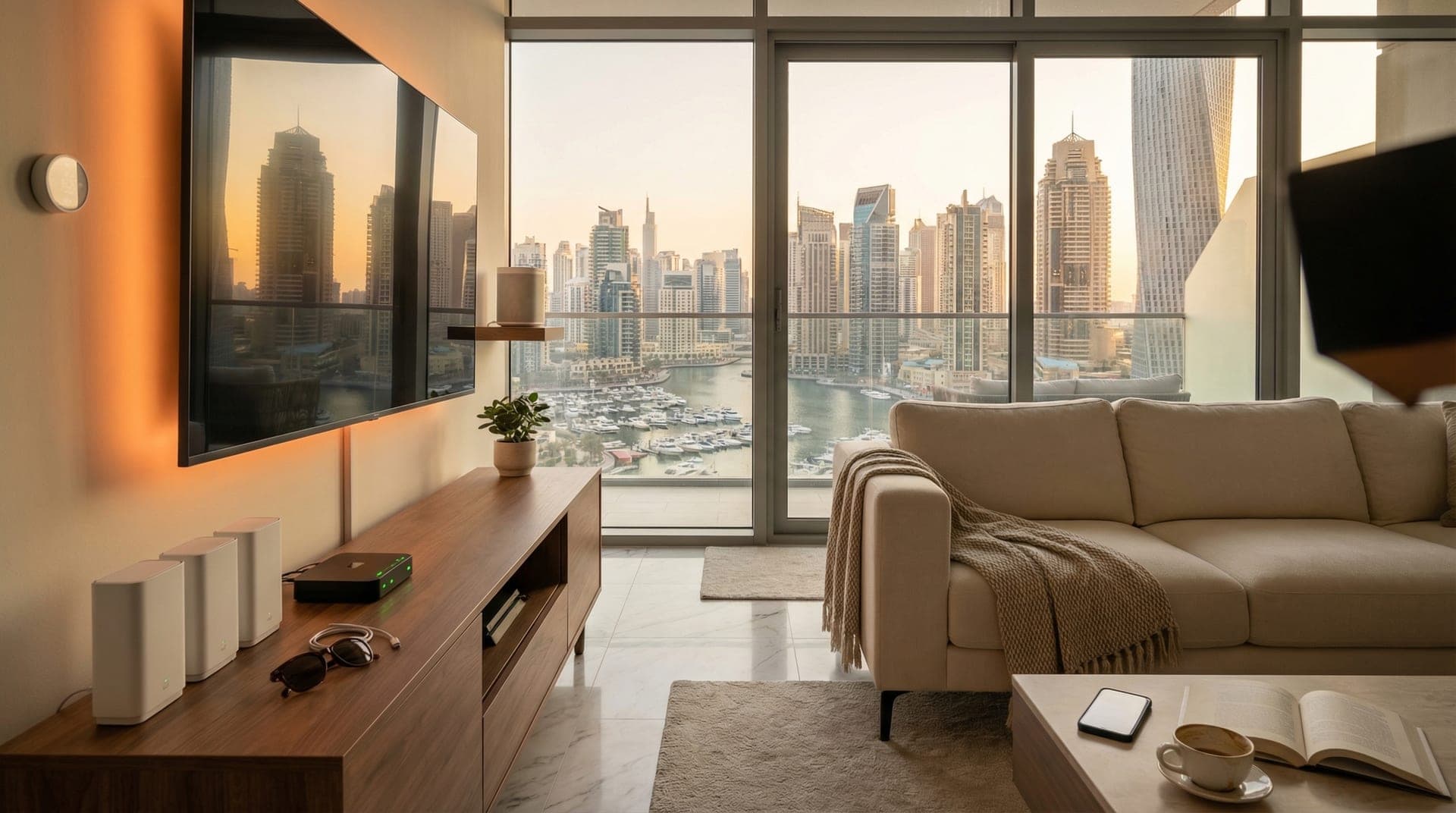
Your smart lights go unresponsive. Again.
You tap the app to turn off the bedroom lights. Nothing happens. You try again. Still nothing. You get up, walk to the switch, and flip it manually - defeating the entire purpose of having smart lights in the first place.
If this sounds familiar, you're not alone. WiFi connectivity is the number one complaint we hear from people with smart home devices, and it's usually not because your internet is slow. The average home now has 27 connected devices competing for bandwidth (Netgear, 2025). Add a handful of smart plugs, cameras, and sensors, and your router starts struggling in ways that have nothing to do with your internet speed.
TL;DR: Smart home devices drop off WiFi because of router overload, band interference, and network congestion - not slow internet. The fixes are straightforward: upgrade to a mesh system, create a dedicated network for smart devices, use non-overlapping WiFi channels, and consider devices that run on Zigbee or Thread instead of WiFi. Most of these fixes take an afternoon.
Why Does WiFi Struggle With Smart Home Devices?
Your router was designed for phones, laptops, and maybe a TV. It was not designed to maintain persistent connections with 15-30 low-power devices that need to stay online around the clock. This is what's happening inside your network when things start dropping.
Most consumer routers start degrading performance at 30-40 connected devices (Hitron, 2025). That sounds like a lot until you count your phones, tablets, laptops, smart TV, gaming console, and then add smart plugs, bulbs, sensors, cameras, and voice assistants. A typical Dubai apartment with moderate automation hits 25-35 devices without trying.
The router doesn't crash. It gets sluggish. Devices lose their connection quietly, and you only notice when something fails to respond.
Is Your Router the Problem?
In most cases, yes. The router your ISP gave you - whether from du or Etisalat - is built for basic internet browsing. It handles streaming and video calls fine. But it was never tested against a network with 20+ persistent smart home connections that need to stay alive while your family streams Netflix and joins Zoom calls simultaneously.
When we survey apartments for smart home installations in Dubai Marina or Downtown Dubai, the router is the first thing we check. In our experience, about 70% of smart device reliability issues trace back to the router or its configuration.
The ISP router typically broadcasts a single network name that combines 2.4GHz and 5GHz bands. This causes a specific problem for smart devices, which we'll cover next.
What's the Deal With 2.4GHz vs 5GHz?
Most smart home devices only connect on the 2.4GHz band because it uses less power and covers a wider range. But your phone and laptop prefer the faster 5GHz band. When your router combines both bands under one network name, smart devices sometimes try to connect on 5GHz, fail, and drop off entirely (IoT For All, 2025).
The 2.4GHz band has another problem: congestion. It only has three non-overlapping channels (1, 6, and 11). In a Dubai apartment tower, dozens of neighbouring networks compete on those same three channels. The 2.4GHz band is also shared with Bluetooth devices and even microwave ovens, adding interference from sources you can't control.
This is why your smart devices work perfectly at 2am when everyone's asleep, but start dropping during evening hours when the building's WiFi traffic peaks.
How Many Devices Can Your Router Actually Handle?
Consumer routers advertise support for 32, 64, or even 128 simultaneous connections. Those numbers are misleading. Real-world performance drops well before hitting those theoretical limits. Once you pass 30-40 active connections, response times increase, connections become unstable, and devices furthest from the router start disconnecting (Tom's Hardware, 2025).
There's also a hidden issue: DHCP lease exhaustion. Your router assigns each device a temporary IP address. If the lease time is set too short (some ISP routers default to 30 minutes), devices constantly renegotiate connections, overloading the router's memory. Setting the DHCP lease to 8-24 hours immediately reduces this churn and stabilizes your network (SmallNetBuilder, 2025).
When we set up smart home networks, we reserve static IP addresses for critical devices like hubs, cameras, and AC controllers. This guarantees they always get the same address and eliminates reconnection failures.
Will a Mesh WiFi System Fix It?
A mesh WiFi system is the single most impactful upgrade for a smart home network. Instead of one router trying to cover your entire apartment, mesh uses multiple access points that create overlapping coverage zones. Modern mesh systems like Eero, Google Nest WiFi, or TP-Link Deco support 100-200 connected devices without the degradation you'd see from a single router (TP-Link, 2025).
For Dubai apartments specifically, mesh solves two problems at once. The thick concrete walls that block signals between rooms, and the DEWA cupboard/utility room that often sits between your router and the rest of the apartment. Adding a mesh node on each side of that wall makes a noticeable difference.
From what we've seen across our projects in Dubai, mesh is practically a requirement for any setup with more than 10 WiFi-connected devices. The investment pays for itself in avoided frustration. A good mesh system costs AED 500-1,500 and lasts years.
Should You Create a Separate Network for Smart Devices?
Yes. This is one of the best upgrades you can make, and most mesh systems support it out of the box. Create a dedicated WiFi network (SSID) just for your smart home devices, running on the 2.4GHz band with a fixed channel width of 20MHz. Put your phones, laptops, and streaming devices on a separate 5GHz network.
This separation does three things. Smart devices stop competing with your phone for bandwidth. You can configure the smart device network with settings optimized for low-power, always-on connections. And if something goes wrong with your smart home network, your regular internet keeps working.
It pays off a second way if you have children. Once the smart home sits on its own network, you can put the family side on a schedule without taking your AC, cameras and sensors down with it, which is the trap in turning the WiFi off at night for the kids.
What we've found is that this single change resolves about half of all smart home WiFi complaints. It's free if your router supports multiple SSIDs, and it takes about 15 minutes to set up.
It also limits the damage the day your provider swaps the box, because only the devices holding a WiFi password have to be dealt with. That is the whole of what happens to a smart home when a new router arrives.
Can You Avoid WiFi Entirely for Smart Home?
Most people don't realize this: the most reliable smart home setups don't rely on WiFi at all. Protocols like Zigbee, Z-Wave, and Thread were designed specifically for smart home devices. They run on separate radio frequencies that don't compete with your WiFi, use minimal power, and form mesh networks where each device strengthens the overall system.
A Zigbee light switch, for example, runs for 2-3 years on a single battery. A WiFi equivalent lasts 3-6 months (AnythingTech, 2025). Z-Wave operates on a frequency that reduces interference from other wireless devices entirely. And Thread, the newest protocol backed by Apple, Google, and Amazon, creates self-healing networks where devices route around failures automatically.
Brands like Aqara, Lutron, and Philips Hue use Zigbee. All of them connect to your WiFi network through a single hub rather than individually. So instead of 20 smart devices on your WiFi, you have one hub. This dramatically reduces router load.
When we design smart home systems for clients, we default to Zigbee and Thread wherever possible. WiFi devices are reserved for cameras and controllers that genuinely need the bandwidth.
What Should You Do Right Now?
You don't need to replace everything at once. Start with the fix that matches your biggest problem.
If devices drop during peak hours: Create a dedicated 2.4GHz network for smart devices. Set the channel manually to 1, 6, or 11 (whichever shows the least congestion in a WiFi analyzer app).
If devices drop in certain rooms: Add a mesh WiFi node or a WiFi extender in the dead zone. In Dubai apartments, the bedroom hallway and kitchen are the most common weak spots.
If your router is more than 3 years old: Upgrade to a mesh system. The technology gap between an ISP router from 2022 and a current mesh system is significant.
If you're planning a full smart home setup: Talk to us before buying anything. The device choices you make now determine whether your system runs on WiFi (more problems) or Zigbee/Thread (fewer problems). A free consultation takes 15-30 minutes and saves you from buying the wrong devices.
Frequently Asked Questions
Do I need faster internet for smart home devices?
Usually not. Most smart home devices use very little bandwidth - a smart plug uses less than 1 Mbps. The UAE's average broadband speed of 123 Mbps (SpeedGEO, 2025) is more than enough. The problem is almost always network congestion and router limitations, not internet speed itself.
Will a WiFi extender fix my smart home connection issues?
Sometimes. Extenders help with coverage gaps in specific rooms, but they don't solve the root causes of device drops: router overload, band interference, and DHCP issues. A mesh WiFi system is a better long-term solution because it handles device handoff between nodes automatically.
Can my landlord stop me from installing a mesh WiFi system?
No. Mesh WiFi systems are plug-and-play devices that sit on shelves or tables. They don't require drilling, wiring, or any modification to the apartment. You take them with you when you move. This applies to all renter-friendly smart home setups.
How many smart home devices can a mesh WiFi system support?
Modern mesh systems like TP-Link Deco and Google Nest WiFi support 100-200 connected devices. For comparison, most ISP-provided routers start struggling at 30-40 devices. If you're building a larger smart home, consider using Zigbee or Thread devices that connect through a single hub instead of individually clogging your WiFi.
What's the best WiFi channel for smart home devices in a Dubai apartment?
Use channels 1, 6, or 11 on the 2.4GHz band - these are the only three that don't overlap with each other. Download a free WiFi analyzer app to see which channel has the least traffic from neighbouring apartments. In dense towers like those in JBR or Dubai Marina, this alone can make a noticeable improvement.
Ready to fix your smart home WiFi for good?
If you're tired of unreliable smart devices, we can help. We assess your current network, recommend the right setup for your apartment, and configure everything so it stays connected. Get a free consultation and we'll tell you exactly what needs to change - no obligation, no surprises.
Ready to Get Started?
Get a free consultation and we'll recommend what makes sense for your situation.
Get Free Consultation