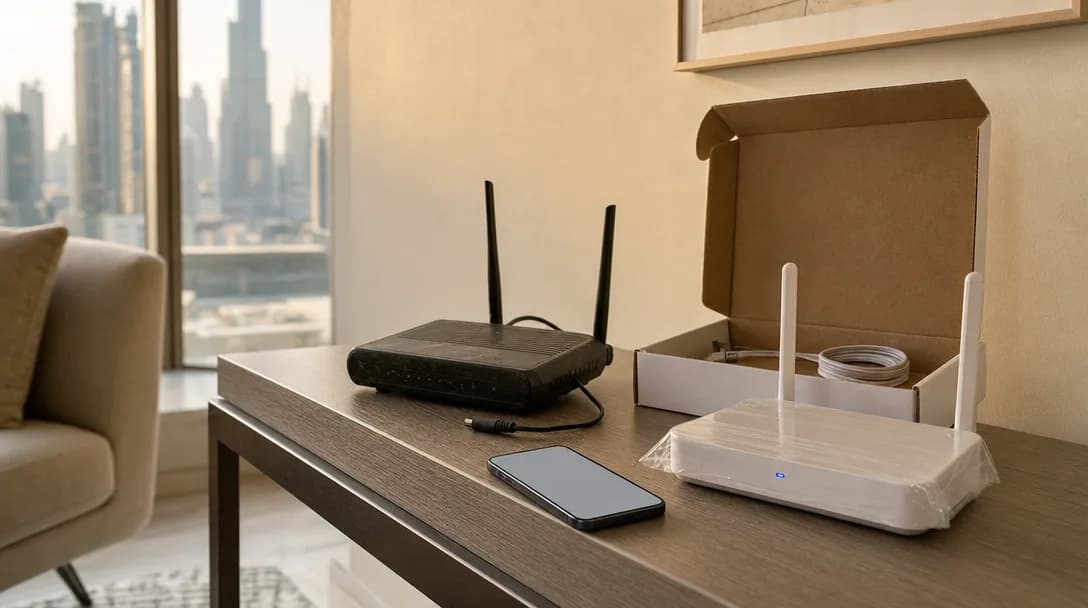
The engineer swaps the box, checks the speed on his phone, and leaves. By evening the internet is the fastest it has been in two years and the apartment has gone quiet. The wall switch still works the lights and nothing else does. The camera app spins and gives up. The AC controller is a grey tile with a line under it saying it was last seen at 2:14 that afternoon.
Nobody broke anything. Every one of those devices is looking for a network that stopped existing when the old router went into the engineer's van.
TL;DR: A new router comes with a new network name and password, so every device that stored the old pair drops off at once. The fix is to set the new router back to the old name and password before you reconnect anything. Devices that sit behind a hub never notice the swap at all. Write the old credentials down before the engineer arrives.
Why a New Router Takes the House With It
A smart device does not remember your router. It remembers three things: a network name, a password, and the kind of security the network was using. It will join any box in the world that offers all three, which is what lets a mesh system hand your phone between three access points without you noticing.
Your new box offers none of them. It arrives with its own network name and its own password printed on a sticker underneath, and every device in the house was told to look for the old pair.
Your phone and your laptop take ten seconds each, because you are holding them and they have a keyboard. The plugs, bulbs, sensors, cameras, locks and AC controllers have neither. Each one has to be found in its own app, put back into pairing mode, and handed the new credentials, and a few of them will want a factory reset first.
None of this is unusual. e& gives eLife customers a hardware refresh every couple of years as part of the plan: "Upgrade your 4K TV Box, Home Telephone, and Wi-Fi router once every two years with a commitment of 24 months" (e&, 2026). Plan changes and a box that has started dropping out produce the same visit. What nobody sends is a message warning you that thirty devices are about to go offline together.
The Two Piles: What Dropped Off and What Did Not
Walk the house the morning after and the devices sort themselves into two piles, and the sorting has nothing to do with brand or price.
In the first pile is everything holding your Wi-Fi password itself. Wi-Fi cameras, Wi-Fi plugs, most smart speakers, a Wi-Fi AC controller, a doorbell, and the Wi-Fi relays some installers fit behind the wall switches. Each one is a separate account on your network and each one needs its own visit from you.
In the second pile is everything that talks to a hub. Zigbee and Thread devices never saw your router, never stored your password, and have no opinion about what happened to it. The bulbs, the door sensors, the blinds and any wall switches that run through the hub were talking to it the whole time. The hub is one device with one internet connection, so when the hub is back, the entire second pile is back with it.
Philips is explicit about where its bridge sits: "The Hue Bridge does not connect directly to WiFi; it must be hardwired to your router to function" (Philips Hue, 2026). A cable into the new router and forty bulbs are online, without a single one of them being touched.
We build homes both ways, and a router swap is the day the difference shows. A villa wired with a Wi-Fi relay behind every switch can put fifty or more devices directly on the network, and every one of them holds the password. The same villa built around a hub can put one device on the network with everything else behind it. Neither approach is wrong, and there are good reasons to pick either, but they cost very different afternoons when the box changes. More on how the two compare in our guide to wired and wireless smart homes.
Keep the Old Network Name and Password
Google states the shortcut plainly: "If you install a new router, the easiest thing to do is use the same network name (SSID) and password as before. Your Google Nest thermostat will typically be able to reconnect easily" (Google, 2026).
That is the repair, and it happens on the router. Type 192.168.1.1 or 192.168.0.1 into a browser on a device connected to the new box, and the login details are usually printed on that same sticker. Find the Wi-Fi settings, change the network name to the exact name the old one used, set the same password, and the first pile rejoins on its own while you make coffee.
Capitals, spaces and punctuation all count, so "Home Wifi" and "Home WiFi" are two different networks as far as your camera is concerned. If your smart devices were given a network of their own, which is what we build into a home network and what our Wi-Fi troubleshooting guide recommends, then there are two names to restore and the smart one matters more.
If the Box Has Already Gone
If you are reading this at nine in the evening with the engineer long gone, the name and the password are probably both still in the house, on a phone.
Any phone or laptop that was on the old network kept them. Start with the phone that has been in the house longest. The old network has stopped broadcasting, so it no longer appears in the normal Wi-Fi list, and on an iPhone running iOS 16 or later you get at it by opening Settings, tapping Wi-Fi, then tapping Edit in the top corner and unlocking with Face ID, Touch ID or your code. The networks the phone has joined before appear. Tap the information button beside the old one and then, in Apple's own words, "Tap the Password field to reveal it" (Apple, 2026). Android does this differently depending on who made the phone, and its sharing screen usually produces a QR code instead of text you can type into a router page, though some builds print the password underneath it. If the house runs on Android, look under Wi-Fi settings for saved or known networks, and expect the label to vary.
If every phone comes up empty, the old box is the next place to look. Where the operator left it behind, the factory password is on the sticker underneath, and it still works if nobody ever changed it.
One more thing to check afterwards. If the old box is still plugged in somewhere as a spare, unplug it. Google flags the same trap: when you reuse a network name, "make sure your devices aren't still connecting to your old router" (Google, 2026). Two boxes broadcasting the same name is worse than the problem you started with. Half the house attaches to the box with no internet behind it and then reports itself offline in the app, which sends you looking at the device instead of at the cupboard.
This Is the Opposite of the Advice for Moving Out
Our end-of-tenancy guide tells you not to reuse an old apartment's network name and password at a new address, and that still stands. The two situations look similar and are not.
Moving means the old credentials are sitting inside devices you are leaving behind, selling, or handing to the next tenant, and carrying them to a new address keeps them useful to somebody else. Replacing a router in the home you already live in changes none of that. Same walls, same people, same devices. The network name here is a label forty devices were told to watch for, and there is no reason to change the label on the same day you change the hardware.
If you want a genuinely new password, change it a week later on its own, when the only thing going wrong is the thing you chose to do.
When the Name and Password Match and a Device Still Will Not Join
Then what changed is the lock, not the label.
Wi-Fi security has moved from WPA2 to WPA3, and the new router probably arrived set to a mode that offers both at once. Apple recommends that setting for homes with older gear, and describes what it does: "WPA2/WPA3 Transitional is a mixed mode that uses WPA3 Personal with devices that support that protocol, while allowing older devices to use WPA2 Personal (AES) instead" (Apple, 2026).
Most devices cope. The ones that do not are older, with Wi-Fi software that expects a network to offer one kind of security and cannot handle being offered a choice of two. TP-Link names the failure in its own support notes, reporting that the Wi-Fi Alliance "finds that some older devices (especially certain IoT devices) cannot associate properly" when faced with two encryption options (TP-Link, 2026).
This lands in Dubai because the current e& router advertises "Advanced security: WPA3 encryption" (e&, 2026). A five-year-old plug that was perfectly happy on the box you had in 2021 can meet a security mode it has never seen, on a network whose name and password it recognises.
The fix is to set the network that device uses to WPA2 only, and it is a standing setting, not a twenty-minute one. The device is failing to join at all, so it will fail again every time it reboots or the power blinks.
Which network you change decides how much that costs you. If your smart devices already have a network of their own, change that one and your laptop, your phone and your work email stay on WPA3 untouched. If everything in the house shares a single name, the same change drops the whole house to WPA2, and the better move is to add a second network for the stubborn device first. Most routers can run one at no extra cost, and it takes about as long as changing the password did. The last option is the blunt one: replace the device. A plug that can only join a network with its security turned down has outlived the router it was bought for.
The Band Question, Which Is Genuinely Contested
Most smart plugs, bulbs and sensors at the lower end of the market use 2.4 GHz only. Most routers now put 2.4 GHz and 5 GHz under a single network name and pick for you, which e& calls band steering and describes as connecting a device to the best band "all while using the same SSID on both frequencies" (e&, 2026).
TP-Link says that arrangement causes trouble: "some smart home devices only support 2.4GHz and may have trouble connecting when both bands share the same SSID" (TP-Link, 2026). Apple says the opposite for the network as a whole: "Make sure that all routers on your network use the same name for every band they support" (Apple, 2026).
Both are right about different problems. Apple is protecting your phone, which should roam freely across every band in the house. TP-Link is protecting a plug that can only see one of them. Our own answer satisfies both, and it is how we set up a network from the start: leave the family network on one name across both bands, and give the smart devices a separate 2.4 GHz network with its own name. That is the same second network as the one in the security section above, doing both jobs at once. If you would rather not run two networks, turn band steering off while you add the stubborn device, and if it drops off again a week later, leave it off.
What Does Not Come Back On Its Own
A few settings live in the router instead of in your devices, and a new box has never heard of any of them.
Fixed addresses are the common one. If a camera recorder, a hub or a home server was given a permanent address by the old router so something else could find it reliably, that arrangement is gone, and whatever depended on it fails in a way that looks like a broken device. Any port forwarding that let you reach a recorder from outside the house goes with it. A guest network you set up for visitors no longer exists, which matters more than it sounds if that was the second network your smart devices were living on. Any rule you built around blocking or scheduling one device is gone too.
Then there is the router's own admin password, which is back to whatever is printed on the sticker. Change it before you close the browser tab, to something 16 characters or longer that you have not used anywhere else, and while you are in there turn off WPS. Our guide to securing smart home devices covers the rest of that ten-minute pass.
None of these break the house on the day. They break one thing each, weeks apart, which is the hardest kind of fault to trace. Write down what you had to rebuild, so that the next box does not cost you the same evening. If somebody installed your system, tell them the box changed before you spend a night on a camera that was never the problem, and our guide to smart home support covers what that call should and should not cost you.
Before the Engineer Arrives
Ten minutes of preparation replaces an evening of re-pairing.
- Ask the engineer to read you the old router's network name and password from its settings page, or photograph that page yourself before he unplugs anything.
- Open the app you use most and note which devices are on Wi-Fi directly. Those are the ones that will need you.
- Find the hub and know which cable is its. It goes back into the new router first, and it brings the largest pile with it.
- Ask him to set the new network name and password to the old ones before he leaves, and check on your phone that he has.
- Change the new router's admin password, then unplug the old box instead of leaving it powered in a cupboard.
The Version of This That Does Not Happen Again
Fewer devices holding your Wi-Fi password is the whole answer, and it is an architecture decision, not a purchase.
A hub-based system puts one device on the network and everything else behind it. Anything that can take a network cable should have one, which is why the network cupboard in a villa is worth planning properly instead of leaving to whichever shelf the installer found. Both moves shrink the pile a router swap can touch.
You can also keep your own router and let the operator's box do less. e& allows it in its own terms, on the condition that "your router is capable of delivering the speeds you subscribe to" (e&, 2026). Go carefully, though. We could not find published instructions from either e& or du for running their supplied box in a pass-through or modem-only mode, and most of the step-by-step guides that come up in a search are written by other customers working it out for themselves. Support also gets thinner the moment a fault might be in hardware the operator did not supply.
Check who owns the box, too, because the two operators answer that at different moments. e& addresses what happens when you move, treating the fibre unit on your wall as its own property and asking you to take the Wi-Fi router with you (e&). du addresses what happens when the service ends, and unless du tells you otherwise, "you must return the du equipment to us when the service ends. If you do not, we may charge you a fee" (du).
Frequently Asked Questions
How do I find my old Wi-Fi password after the router has been replaced?
Look on a phone before you look anywhere else. Any phone or laptop that was on the old network still holds the name and the password. On an iPhone running iOS 16 or later the old network has stopped broadcasting, so it is no longer in the Wi-Fi list. Go to Settings, Wi-Fi, then Edit in the top corner, unlock, tap the information button beside the old network, and "Tap the Password field to reveal it" (Apple, 2026). Android usually offers a QR code instead of readable text. Failing both, the factory password is on the sticker under the old box.
Will my smart devices reconnect automatically if I keep the same Wi-Fi name and password?
Usually yes. A device stores the network name, the password and the security type, and rejoins any router offering all three. The exception is a device too old for the new router's security mode. That one needs its network left on WPA2 for good, which is an argument for giving it a network of its own.
Can I change the Wi-Fi name and password on an e& or du router myself?
Yes. Both operators let you set the network name and password through the router's own settings page or the app that comes with it. The easier route is to ask the engineer to do it during the visit, while the old details are still in front of you.
My hub is online but the devices behind it are not. What now?
Give it ten minutes. Hub-connected devices rejoin their own network, not yours, and they usually come back on their own once the hub has internet. If a few stay missing, they are probably out of range of a mains-powered device that used to repeat the signal, so check whether anything was unplugged during the visit.
Should I use the new router's Wi-Fi name instead and re-add everything?
Only if you have a reason to. Re-adding devices means a separate pairing session for each one, and some smart locks and cameras want a factory reset before they will join a new network, which loses their settings. Keeping the old name costs one change on the router.
Get Your Smart Home Onto Something Steadier
A router swap should be a twenty-minute visit and a faster connection, not a week of finding devices one at a time. If your home has more things holding your Wi-Fi password than you can count on both hands, that is worth fixing before the next box arrives.
Book a free consultation and we will look at what you have, what belongs on a hub, and what should be on a cable.
Ready to Get Started?
Get a free consultation and we'll recommend what makes sense for your situation.
Get Free Consultation