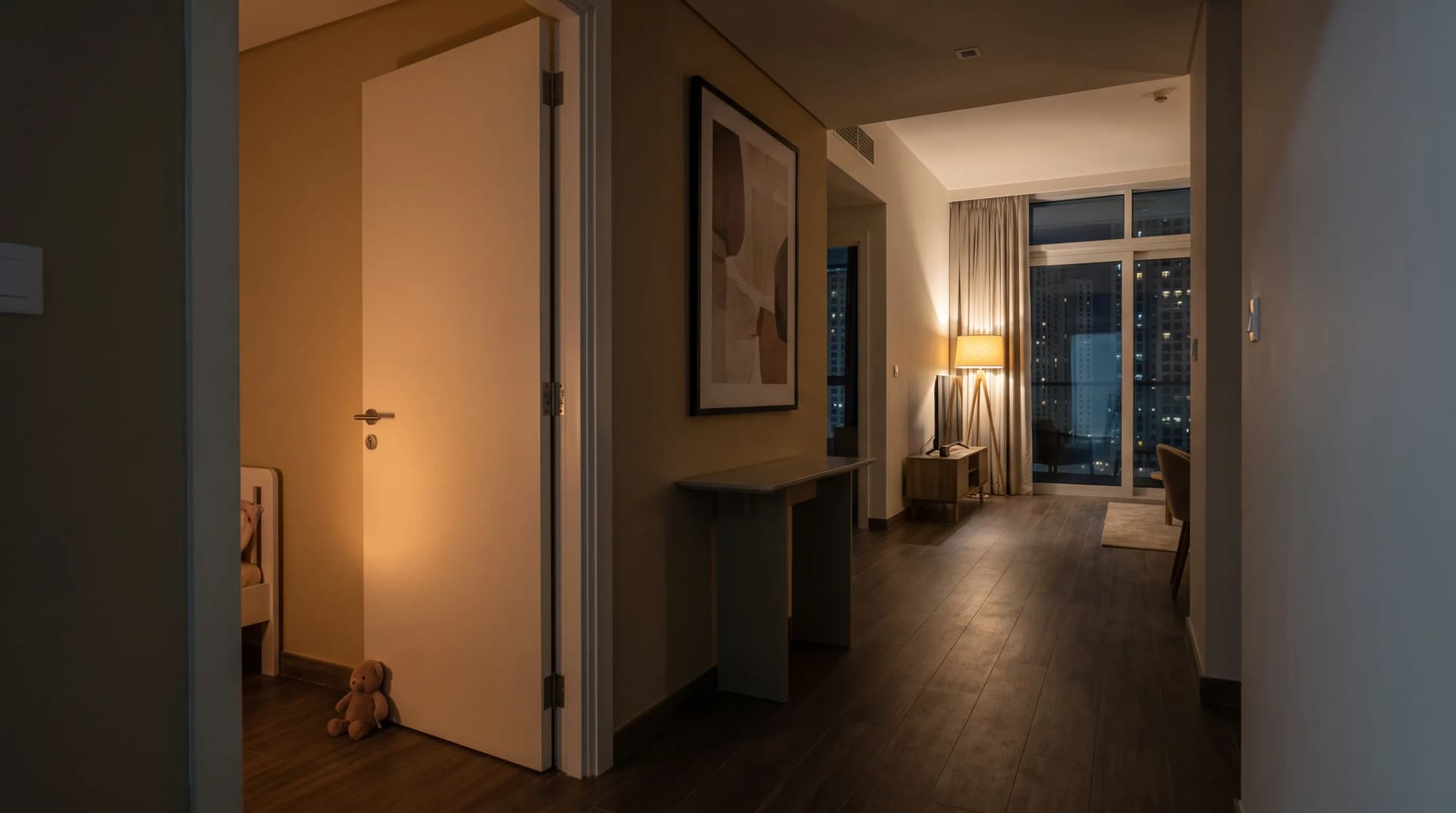
Every parent in Dubai arrives at the same 10pm argument eventually, and most of them try to end it the same way: open the router app, find the schedule, switch the Wi-Fi off at bedtime. It works on the first night. Then the AC does not pre-cool the bedrooms at six the next morning, the hallway camera has a nine-hour hole in it, and the thermostat is showing offline with a little grey dot.
The bedtime is worth having. The mistake is scope: the schedule lands on the whole network instead of the two tablets it was meant for.
TL;DR: Do not schedule the whole network. Put the kids' phones and tablets in a device group and schedule only that group, so your AC, cameras, sensors and hub stay online all night. Set the same bedtime on the device itself as well, because a phone with mobile data ignores your Wi-Fi entirely.
What a Wi-Fi bedtime actually switches off
A network-wide Wi-Fi schedule switches off the Wi-Fi signal itself, the radio inside the router that everything in the flat connects to, rather than the internet line coming into the building. Every device joined to that signal goes quiet together.
In a Dubai apartment that signal is carrying the AC controller, the smart plugs, the cameras, the blinds motor and the hub that runs all of it. The iPad is one line on that list.
Some gear escapes this. Door sensors, leak sensors and many bulbs talk to a hub over their own short-range radio rather than over Wi-Fi, so they carry on if the hub itself has a cable to the router. Anything that connects to Wi-Fi directly goes down with the signal, and in most apartments that is the AC controller, the cameras and the plugs.
The line into the building is rarely the weak point. Fibre coverage in the UAE is about as good as it gets anywhere: the country "has maintained its global leadership in household fibre-optic network penetration according to the latest international indicators, ranking first globally for the tenth consecutive year, with a penetration rate of 99.7 per cent" (Khaleej Times, 2026). So when the smart home goes dark at 10pm, the cause is inside the flat: you switched off the signal everything shares.
Three things in your home that should never sleep
The first is anything on a morning schedule. Your AC pre-cool, your blinds, your wake lighting: these fire at five or six in the morning, and a network that comes back at seven has already missed them. Most Wi-Fi AC controllers keep their schedule in the manufacturer's cloud, and one of those sitting offline at 5am never gets the instruction. If you have built a wake and wind-down routine in the bedrooms, the overnight window is when it needs to be reachable.
The second is anything that watches. Cameras, smoke and gas detectors, the leak sensor. Overnight is the window you most want covered, and it is the window a Wi-Fi schedule removes. A sensor that cannot reach the network cannot send you the alert, even where it keeps sounding locally.
The third is the hub. Many hubs keep running their automations with the internet down, but a hub that has lost contact with its own devices controls nothing.
Put the kids' devices in their own group
Most current router apps can schedule individual devices, and almost none of them call it the same thing. Look for Parental Controls, Profiles, Family Wi-Fi or Access Schedule, usually under a family or parental heading rather than under the Wi-Fi settings. Inside it you create a named profile, tick the devices that belong to it, and give that profile a bedtime.
You build one profile holding the kids' phones, tablets, console and TV stick. That group goes to sleep at ten while the rest of the house carries on.
This is the same split we recommend for reliability. Our guide on why Wi-Fi keeps dropping smart devices makes the case for giving smart home gear a network of its own, usually on the slower, longer-reaching 2.4GHz signal. Routers broadcast two signals: a 2.4GHz one that travels further through walls, and a 5GHz one that is faster over short distances. Most smart home gear only speaks the first. Once that separation exists, a bedtime schedule becomes safe almost by accident, because the family network can be put to bed while the house network sits somewhere else.
Why the device list stops matching
A router profile identifies a phone by its hardware address, a serial number the phone hands the network, usually called a MAC address. Phones no longer give out their real one.
Apple states it plainly: "To improve privacy, your iPhone, iPad, iPod touch, Mac, Apple Watch, or Apple Vision Pro identifies itself to each network using a different Wi-Fi address, and might rotate (change) the address periodically" (Apple, 2025).
On a home network with a proper password, though, that address holds still. Apple's Fixed setting uses a private address where "the private address doesn't rotate", and a device "chooses Fixed by default when joining a new network that uses WPA2 or stronger security". Android holds one per network too: "By default, Android uses persistent randomization", an address that "remains the same until a factory reset" (Android Open Source Project, 2026). Android's own documentation gives the reason: persistent addresses let a network "remember a device", which is what makes parental controls work at all.
What does break the profile
Particular events break it, and they all involve someone doing something to the phone. Erasing a device or resetting its network settings gives it a new address. On an iPhone, making it forget the network and rejoining does too, though Apple rate-limits that: on iOS 18 and later, the device "also forgets the private address it used with that network, unless it has been less than 24 hours since the last time it was made to forget that network". On Android the same trick fails outright, since "the MAC address doesn't get re-randomized if you forget and re-add the Wi-Fi network".
So a teenager who has worked out that forgetting the network and rejoining gets them back online is not doing anything clever. They are triggering documented behaviour on purpose, once a day, on one brand of phone.
What we tell clients to do about it: name every device in the router app the day it joins, and check the group again a week later. Treat a child's device that has quietly left its profile as ordinary maintenance.
Mobile data goes around your Wi-Fi schedule
A Wi-Fi schedule controls your Wi-Fi. It has no authority over a phone with a data SIM, and that gap is where most bedtime schedules actually fail.
The control that follows a device everywhere is set on the device. On an iPhone or iPad, Apple's Screen Time includes a Downtime setting that will "block apps and notifications for specific periods", and "when you schedule downtime, only phone calls and apps that you choose to allow are available" (Apple, 2026). On Android, Google's Family Link lets you "set your child's Android device or Chromebook to lock after they've used it for a certain amount of time or when you think they need downtime" (Google, accessed September 2026).
Set both. The router schedule handles the tablet that never leaves the sofa and the console nobody can move. The device schedule handles the phone that goes to school and runs on mobile data all day.
Never put the router on a smart plug
A smart plug on the router is the internet version of pulling the fuse, and it takes the whole house with it.
A router draws very little, so this sits nowhere near the safety line we draw around high-load appliances on plugs. The damage is in the scope. Cutting power to the router at 10pm takes down your cameras, your sensors, your hub and every morning schedule you have built, to stop one child watching videos in bed. It also reboots the router every single night, which is how you end up with devices that never quite settle.
A question that comes up often: do the cameras keep recording through all this? A camera with its own memory card does, though it cannot alert you. A Wi-Fi camera that records to a recorder elsewhere in the home loses the recorder along with the network, and a cloud camera stops recording entirely.
What happens when the network changes underneath
A smart device joins one Wi-Fi network by name and holds on to it. Change that name, change the password, split one network into two, or swap the router for a new one, and the device is still looking for something that no longer exists. It shows offline, or it shows nothing at all, and the schedule it was running quietly stops. The symptom looks like a broken device rather than a changed network, which is why it catches people out.
So when you restructure the network to make a bedtime schedule possible, expect to put some smart devices back on by hand. Do it on an evening when you have an hour, rather than the night before school.
The apartment setup, start to finish
For a two or three bedroom Dubai apartment, the whole job is one evening.
Name everything first
Open the router app and go through the connected device list, renaming each entry to something a human recognises: "older kid's iPad", "living room AC", "hall camera". An unlabelled list of twenty devices is the reason most people give up at this point. If your router app has no device list you can rename, and no parental or profile section at all, that is your answer on the equipment question below.
Split them into three groups
Smart home devices into one group, family devices into another, and the kids' devices into a group of their own. Apply the bedtime schedule to the last group only, and give the older child a later time than the younger one so the schedule survives contact with reality.
Then set Downtime or Family Link on each child's phone to the same times, so the rule holds when they are on mobile data.
Test it before you trust it
Wait for the schedule to fire, then check three things:
- A kid's device is offline.
- The AC controller is still online.
- A camera still shows a live view.
If your morning routine runs on lights or blinds, check the next morning that it fired. The kids' room lighting and blinds setups both run on overnight schedules, so they are a good early warning that something was cut off that should not have been.
What we build into a network so this is easy
When we design a home network, the smart home gets its own separate Wi-Fi network from the start, with its own name and its own password, kept apart from the family one. The family side can then be scheduled, paused or rebuilt without any of it reaching the house.
In a villa with a proper network cabinet, that separation is straightforward, because the Wi-Fi units around the house and the box all the traffic passes through are ours to configure. In an apartment running on the router the building handed you, it usually means adding a second network on the same router and moving the smart devices onto it. Either way you end up with a switch that reaches the kids' devices and nothing else.
Frequently asked questions
What time should the Wi-Fi bedtime actually be?
Set it fifteen to thirty minutes after the bedtime you want, not on it. A cut-off that lands mid-episode produces an argument every night. One that lands after the room has already gone quiet mostly goes unnoticed, which is the point of automating it.
Will a bedtime schedule affect everyone else on the network?
A group schedule reaches only the devices in that group. Adults, work laptops and the TV stay in their own profiles with no schedule attached. This is the main reason to spend the extra twenty minutes naming devices instead of using the one big off switch.
Can I pause a child's internet immediately instead of waiting for the schedule?
Most router apps that support profiles also have a pause button per profile or per device, which is useful mid-afternoon. A pause holds until you lift it, so set a reminder, because an unlifted pause becomes tomorrow morning's mystery.
What if a smart device ends up in the kids' group by mistake?
It goes offline at bedtime with everything else in that group, which is exactly how most people discover their AC controller was in the wrong list. After you build the groups, read the kids' list back line by line and move anything you did not put there deliberately.
Do I need new equipment to do this properly?
Usually not for the scheduling itself, since most current routers support device groups. You need new equipment when the router the building supplied cannot create a second network or cannot hold a stable device list, which tends to be the same router that is already dropping your smart devices.
Where to start
Name your devices, group them, and schedule the group instead of the network. That alone fixes the version of this that most Dubai families are living with.
If the router you were given cannot do it, or you have already tried and your thermostat keeps falling off, that is a network design question rather than a settings question. Talk to us and we will look at what you have, tell you whether it needs replacing or only reorganising, and set the smart home up on its own network so the rest of the house is yours to schedule.
Ready to Get Started?
Get a free consultation and we'll recommend what makes sense for your situation.
Get Free Consultation