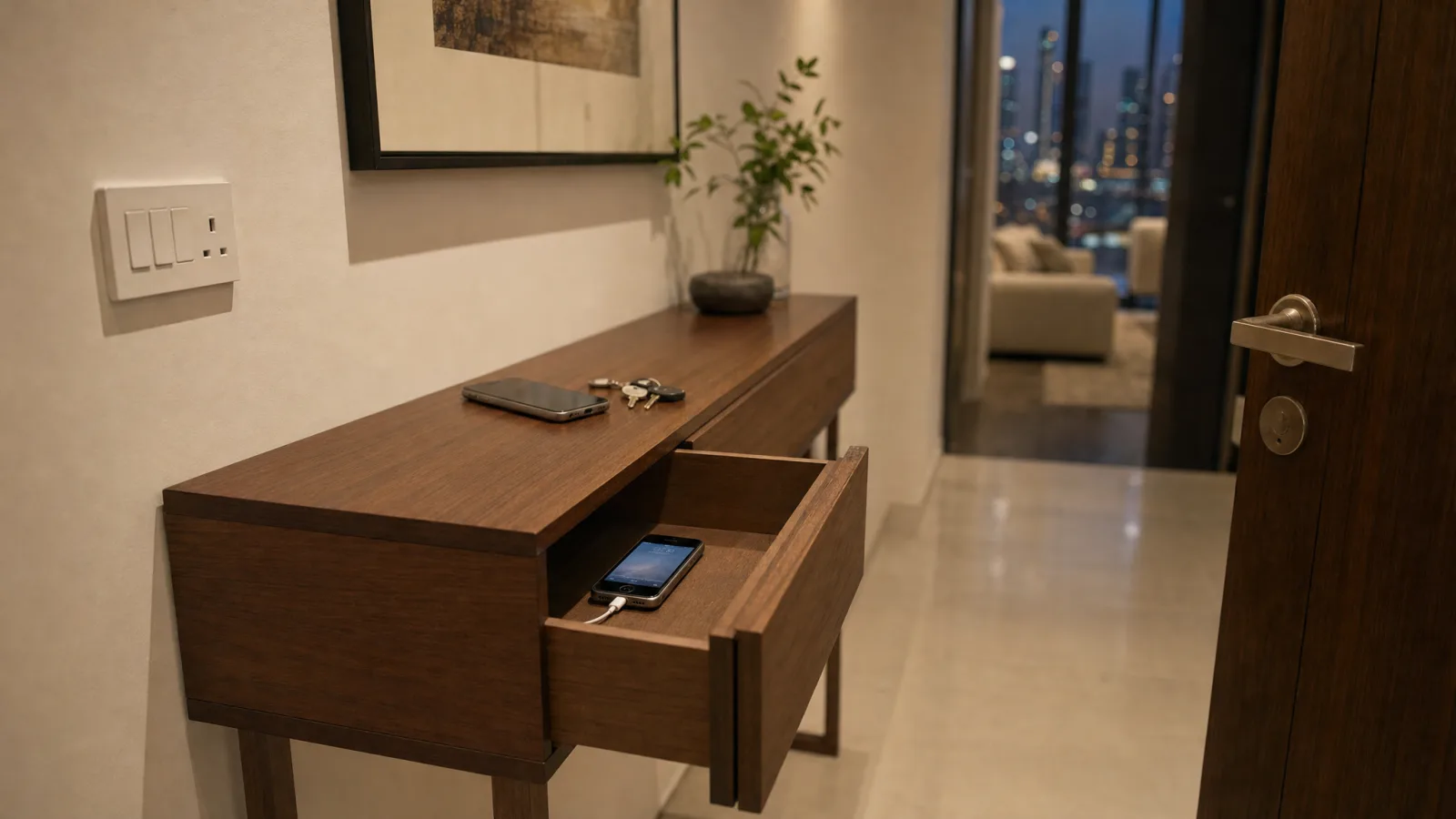
If your leave and arrive automations stopped working after you changed phones, check which phone the house is following. The AC that should switch off when the flat empties keeps running, or the hallway light no longer comes on as you walk in, and usually the system is still tracking the old phone or hasn't started tracking the new one. Where you fix that depends on what runs the automations.
When the House Doesn't Notice You've Left
If the old phone stays at home as a spare, signed in and on the Wi-Fi, the system may keep counting it as you.
Home Assistant is the easiest place for this to happen, because it can combine several devices into one person. Each time you sign in to the Home Assistant app on a phone, that phone is added to your person (your profile in the system) as one of the devices that report where you are. The app's documentation says this can stop your home or away status updating the way you'd expect (Home Assistant Companion docs). The fix it gives: go to People, select yourself, review the devices that belong to you, and "Remove any device that sits at home or is no longer used. Only keep devices that travel with you in this list." In the app, People is under Settings.
Some homes also detect phones through the router or a Bluetooth sensor. Home Assistant gives those priority over the phone's GPS, so if one of them says you're home, you count as home (Home Assistant). If the old phone was added to your person that way, it can keep you home all day from the drawer.
The old phone can stay signed in if you still use it as a remote around the flat. It just shouldn't be on the list of devices that decide whether you're in.
On Apple Home, the same thing happens if an iPad that never leaves the flat is set as your location. The next section covers where to change that.
When Nothing Happens as You Arrive
Here the system is waiting for a phone that isn't with you.
Apple Home follows one device per person, the one set as My Location. Location automations need Share My Location turned on for the iPhone or iPad you use to control the home, and Apple says to make sure "This Device" is selected next to My Location, in Settings, then your name, then Find My (Apple). Do that on the new iPhone before you rely on an arrival scene.
Google Home takes one phone's location per person. Turn on location sharing for a second phone and Google turns it off for the first one (Google). Until you switch it on, the new phone shares nothing. In the Google Home app, tap your profile picture, then Home settings, then Presence sensing, and under Your location find the new phone and turn it on. Each member of the home has to do this on their own phone, because Google doesn't let you switch it on for someone else.
If your arrival automations run through the app that came with a device, like an AC controller's own location trigger, sign in on the new phone and set that app's location permission to always (Allow all the time on Android). The old phone may need signing out of it. Our guide to location-based automation covers how those triggers are set up in the first place.
Before the Old Phone Leaves the Flat
If the old phone goes to a child, a relative or a trade-in, sign it out of your smart home first. A phone still signed in to your apps can do whatever those apps do, and that may include unlocking the front door.
For an iPhone, Apple's checklist for selling or giving one away includes signing out of your Apple Account and then Erase All Content and Settings, which also turns off Find My and Activation Lock (Apple). That clears the phone. The house keeps its own records, though. In Home Assistant the old phone stays listed under your person in People until you remove it, and the smart lock, camera and AC apps may still list it as a signed-in device. Remove it in each one.
If someone in the family is taking it over, give them their own login instead of leaving yours on it. Our guide to sharing access to your smart home explains how to add a second person properly.
Testing It After the Change
Walking to the lift won't tell you much. A location trigger fires when the phone crosses a boundary drawn around home, often a few hundred metres wide, and in a tower the lift lobby and the car park are well inside it. Router and Bluetooth detection can also take a while to notice you've gone.
So test on a real trip out, like the drive to work, and give it a few minutes. In Home Assistant, your status (home or away) shows on the dashboard, so you can watch it change. If it doesn't change, look at which devices are listed under you before anything else.
If your smart AC or lighting runs on Home Assistant, Apple Home or Google Home and you'd like a second pair of eyes, send us a message with what you've changed and we'll help you find where it's stuck.
Ready to Get Started?
Get a free consultation and we'll recommend what makes sense for your situation.
Get Free Consultation