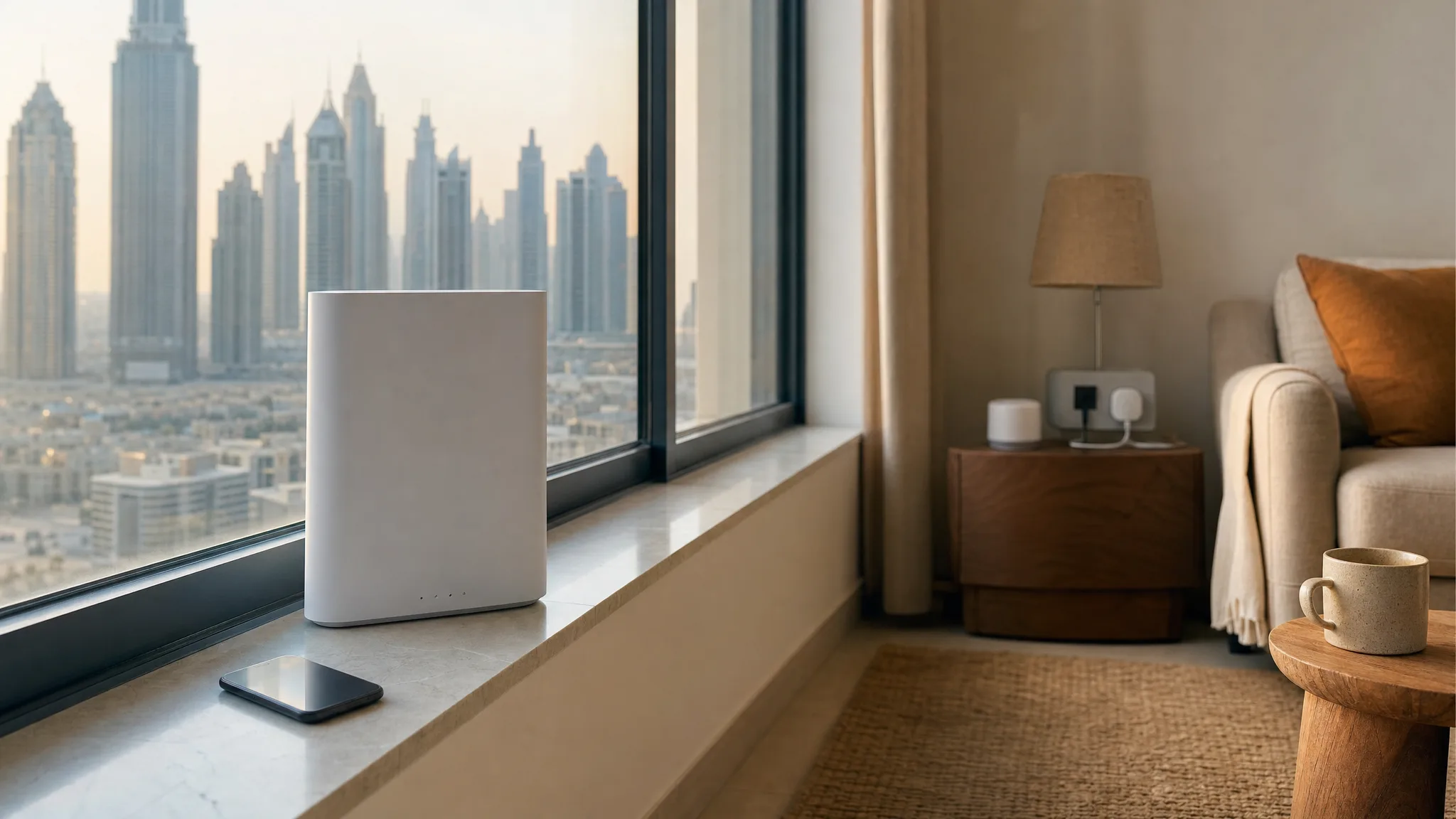
Plenty of Dubai flats start life on a 5G home router: fibre isn't in yet, or you'd rather not wait for an installer. You can build a smart home on one. Plugs, cameras and AC controllers talk to the Wi-Fi and can't tell whether the line behind it is fibre or a SIM card, so they only notice when the box itself changes.
du's setup guide for Home Wireless ends with this step: "Connect your devices to the Wi-Fi router using the password at the back of the router" (du, 2026). e& prints the same sentence for its own Home Wireless router (e&, 2026). It's the obvious thing to do, so people do it, then pair a plug, a camera and an AC controller over the next few days. Each one stores the name and password from that sticker.
When fibre arrives, or the SIM goes into another router, or the operator replaces a faulty unit, the new box comes with a sticker of its own and every device that learned the old one drops off together.
Give the Network Your Own Name Before the First Device Joins
Pick a Wi-Fi name and password you'll keep for years, the kind you'd be happy typing into a fibre router in six months and into whatever router your next flat has. Then put them on the 5G router before you pair anything.
It's a short job on most routers. Connect your phone to the router's Wi-Fi, then look on the same sticker for the admin address and login, which may be different from the Wi-Fi password. Open that address in your phone's browser (or the operator's app, if it offers router settings), find the Wi-Fi or WLAN page, change the name and password, and save. Your phone drops off as soon as you save, so reconnect it with the new details. If the sticker shows no admin login, du or e& support should be able to help. Already paired two or three devices? Re-pairing those now is quicker than re-pairing a dozen later.
What a smart plug stores is a network name and a password, and it will usually join a new box that offers the same two. Google gives this advice for its Nest thermostats: "If you install a new router, the easiest thing to do is use the same network name (SSID) and password as before", adding that the thermostat "will typically be able to reconnect easily" (Google, 2026).
So on fibre day you give the new router the same name and password, and most of the devices find it without you touching them. Skip the renaming and the same day means a dozen apps, each device back in pairing mode and a factory reset for the stubborn ones, which we go through step by step in what to do when a new router knocks your smart home offline. Keep a note of both somewhere other than the router, since the 5G box may go back to the operator one day.
Router by the Window, Devices in the Middle of the Flat
The 5G signal comes in from outside, so the box wants a window. e&'s own setup steps say as much: "For better performance, place the router near a window and away from any electric equipment" (e&, 2026).
Your smart devices would rather the router sat in the middle of the flat. From a living room windowsill, the far bedroom, the maid's room or a kitchen behind a closed door can end up at the edge of the Wi-Fi, and a camera or AC controller at the edge is the one most likely to drop out.
A hub (the small box some bulbs and sensors talk to instead of the Wi-Fi) makes this sharper, since some hubs can't use Wi-Fi at all. Philips says of its bridge: "The Hue Bridge does not connect directly to WiFi; it must be hardwired to your router to function" (Philips Hue, 2026). A hub like that usually lives beside the router, or beside a mesh unit with a free socket. Before you buy one, check the back of the 5G box for a spare network socket, the square one for an internet cable, often labelled LAN.
If the window spot leaves part of the flat weak, a mesh Wi-Fi system usually sorts it out without moving the router: one unit beside the 5G box and another in the middle of the flat, both broadcasting the name and password you chose on day one. There's more on range in our guide to smart devices dropping off Wi-Fi.
Test Streaming and Video Calls in the First Week
Whether home wireless holds up for streaming and video calls comes down to the signal where your router sits, more than the plan, and you can't know that for sure until the router is in your flat. 5G+ coverage still varies by area: du's FAQ says its 5G+ network "is initially available in main landmarks and downtown areas across Abu Dhabi, Dubai, and other Emirates" (du, 2026), and its page has an availability check by address. Run that first.
e& gives you a short window to back out. On the Advance plan with a router, you can cancel within 7 days, or within 14 days on Premium with a router, and e& waives the exit and equipment charges as long as its conditions are met, including returning the router "in the original packaging" (e&, 2026). du's plans run on a 12-month contract, and its Home Wireless page doesn't mention a cooling-off period or what moving the service involves, so ask about both before you sign.
Use those first days on the things your smart home will lean on. Take a video call from the room furthest from the router, in the evening. Open the camera app from your office and watch how long the live view takes to load. Turn the AC on from outside and see how quickly it responds.
Moving Flats on Home Wireless
On e&, the line belongs to an address. The operator calls Home Wireless "a limited mobility service" and spells it out: "The location is captured and locked as your home once the SIM Card is activated on the router/device. You may relocate (release the lock / change location) by calling 101" (e&, 2026). The first move in a month is free and a second one that month is charged (e&, 2026).
On e&, a router plugged in at the new flat with the lock still in place may show Wi-Fi but no internet. Make the 101 call part of the move, and ask whether they want it before or after the router reaches the new address.
Renaming helps again if the router changes on the way, because the new flat already has fibre or you hand the 5G box back. Give the new router the same name and password and the devices you've brought along join it as soon as they're plugged in. These are the devices renters usually take with them.
Owning the Wi-Fi Instead of Renting It
With e&, the box itself can be yours: you can put the SIM "in our router, or any data enabled router/device of your choice" (e&, 2026).
A step further is a Wi-Fi system you own, like the mesh units above, plugged into whatever box the operator supplies. Your smart devices only ever see your system's network. The operator can swap the 5G box for a fibre one, or replace a faulty unit, and the devices carry on. If you rent and expect to move, it packs into the same box as everything else.
For week one, the renamed network and a written note of the password are enough. If you're setting up a flat right now, our first week in a new Dubai apartment guide puts this step in order with the rest.
On home wireless and planning a smart home around it? Tell us about your flat and we'll suggest where the router, the hub and the Wi-Fi should sit.
Ready to Get Started?
Get a free consultation and we'll recommend what makes sense for your situation.
Get Free Consultation